This happens due to various reasons, mostly when signed in from multiple browsers / devices.
The solution is to clear your browser history for the specific website.
## Clear site-specific cookies and cache in Chrome / Edge
To delete cookies and cache for a specific site in Google Chrome, follow the instructions given below:
At the top right, click on the ellipsis (three dots)
Open Settings
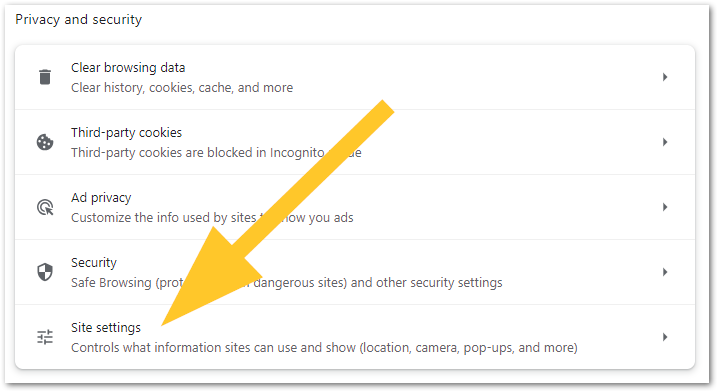
Click Privacy and security
Select Site settings
 Click View permissions and data stored across sites
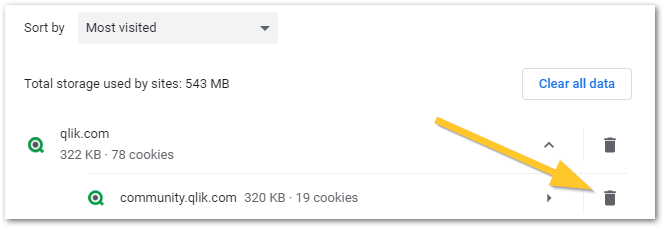
From there, locate the site you wish to clear (expand the main domain for subdomains) and click the trash bin.
Click View permissions and data stored across sites
From there, locate the site you wish to clear (expand the main domain for subdomains) and click the trash bin.
## Clear site-specific data in Legacy Edge
Click on the ellipsis (three dots) button on the top-right corner, then on History > Manage History.
Select the web page data you would like to delete, then click on the X button to the right, and confirm.
To delete all cache, instead of Manage History, click on Clear browsing Data.
Then select what data to delete.
##
Clear site-specific data in Firefox
Open Firefox and go to Firefox Menu > Settings.
Go to the Privacy & Security tab.
Scroll to locate Cookies and Site Data
Click Manage Data
Select or search for the website from the list and click Remove Selected.
In order to remove all data, in Cookies and Site Data, click on Clear Data and then Clear the specific data.
## Clear site-specific data in Safari
Open Safari, select the gear icon (settings) and open Preference
Select Privacy
Click Details
Search for the website you wish to clear the cookies for
Select remove